


































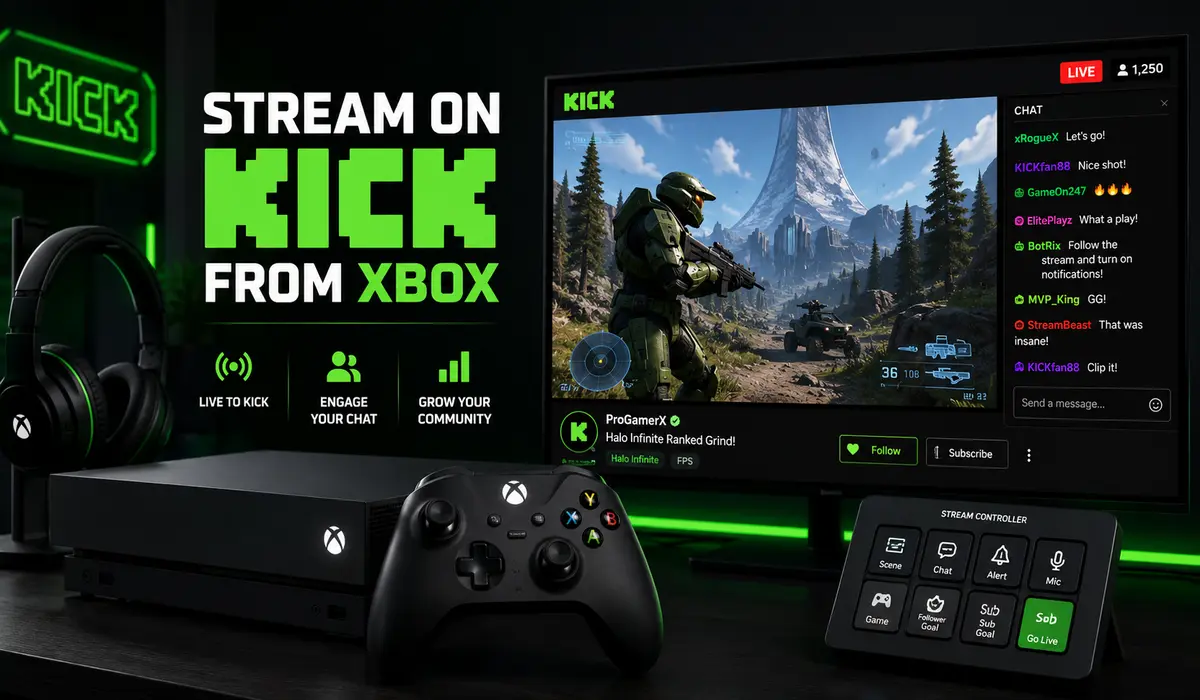
Streaming on Kick from Xbox may look like a technical job meant for those familiar with connections, third party software and so on. In reality, it’s much easier than it seems. There are a few different ways to do it as well, so you can easily find something suitable for your needs and your current equipment setup.
Moreover, the possibility to stream Xbox on Kick gives you more possibilities in terms of options. This means you’re likely to gain more viewers and followers, let alone the possibility to make extra money in the process.
With this thought in mind, here’s what you need to know if you are not sure how to stream on Kick from Xbox in 2026.
The Lightstream Option
This is one of the best options because it doesn’t require signing up in too many places. It’s considered Twitch’s own solution for streaming on a budget and yes, you can use it for Kick as well. However, you should have a Twitch account for it to act as the initial bridge for the signal.
Go to golightstream.com, and you’ll find an option to sign in. Make sure to use your Twitch account there. Once in, find the settings, then choose the option to add a new destination. In the next step, choose RTMP which is the standard protocol for Kick. You’ll be asked to label it, so simply call it Kick.
Get keys by copying the stream URL and stream key. They’re in the Kick dashboard for creators under the ‘Settings’ tab. Paste them into Lightstream, then you’re free to go live.
On the Xbox, find the option to broadcast and capture. Then, you’ll be able to see an option for live-streaming. Go to destinations and pick Lightstream. Start your stream, and you’ll be ready to welcome your first viewers.
If this is the first time you go online, you may also want to consider the option to buy Kick viewers. You’ll appear to be a bit popular in search results, so chances are you’ll also attract organic traffic later as people are naturally drawn to active chats.
The OBS Alternative
The OBS alternative is also worth some consideration, but it’s more technical and requires a bit of multitasking. It’s widely popular because it gives you more control over what you can or can’t do. But at the same time, you might end up stuck here and there, so you’ll need some tutorials as well.
You’ll also need a computer for it that is powerful enough to handle the encoding process.
Get the Xbox app on the computer to display the gameplay. The OBS Studio software is a third-party program. Download and install it on your computer. It’s free to download and use, but make sure you get the latest version from an official source only to avoid any security risks.
Once installed, load it up and find the option to capture a game. This is actually one of the sources. You’ll have more options there, including the Xbox app. Choose the Xbox app to ensure the program is focused on your upcoming game.
Next, head over to the settings and find the option to stream in OBS. You’ll be asked to set the service, so pick a custom there. You’ll be asked for your stream details. This is where you enter the Kick stream URL and key, which were addressed in the description of the previous option.
The Aircast Option
Learning how to stream on Kick from Xbox implies being flexible. With quite a few options, you’ll have to choose the one that feels more suitable for your needs. The Aircast alternative is also worth some attention, especially since it doesn’t require too much work. Here are the steps:
- Go to aircast.app and register an account. You won’t be able to stream without having an account first.
- Once in, you’ll have to select the input source. Since Kick is so similar to Twitch, you’ll have to select Twitch as the input source to receive the data from your console.
- To complete the operation, you’ll require a Twitch account. You’ll need to link the Twitch account. When it comes to the keys, add the Kick stream key.
- Start the stream on Xbox, but do it over Twitch. Aircast will send it over to Kick seamlessly in the background.
As you can see, this option is a workaround alternative, but it’s a good choice when the others aren’t suitable or if you want to reach multiple platforms at once.
Tips & Recommendations
Learning how to stream on Kick from Xbox isn’t all about the actual streams, but also about making everything work flawlessly. Here are a few useful tips and tricks.
- Adjust the resolution and bitrate. Normally, you should set your Xbox stream to 1080p. Stick to 6,000kbps for the best possible quality though you can push it to 8,000kbps if your internet allows it.
- Make sure the microphone is turned on, but also enabled in broadcasting settings. You don’t want to waste time later trying to fix this issue.
- Keep lag under control. Make sure your connection is good, but remember, third-party programs could add a bit of latency.
Bottom line, learning how to stream on Kick from Xbox gives you quite a few different options. Which one is best depends solely on your needs, platform and expectations.